How sign-in works
Your staff sign in to DamageDocket with their existing Microsoft 365 work accounts. There are no new passwords, no separate directory, nothing to register in your own tenant for sign-in, and no consent to grant for it. DamageDocket issues each user a guest identity in our directory that points back at their real account in yours, so authentication always happens against your tenant, under your policies.
Your tenant is involved in two unrelated ways, and it helps to keep them separate as you work through this:
- Permitting your users to sign in to an external organization (Part 1) — a cross-tenant setting.
- Consenting to DamageDocket accessing your mailboxes and calendars (Part 2) — the only consent in this guide, and it has nothing to do with sign-in.
These are different things for different purposes. Completing one does not complete the other.
Before you begin
Have these DamageDocket production details ready:
| Item | Used in |
|---|---|
| Our directory (tenant) ID | Part 1 |
| Administrator consent page | Part 2a |
Integration application ID: 55f91a86-a916-4498-acf5-da3203ced9ee | Part 2b |
| Your environment's web addresses (main application, service, and the two Office add-in addresses) | Parts 3 and 4 |
You will need people who hold:
- Global Administrator in your tenant — for the consent step and add-in deployment.
- Exchange Administrator — for the mailbox access restriction in Part 2b.
- Authority to change web proxy / firewall policy, if your firm filters outbound traffic.
You will also need to decide, before Part 2, which shared mailbox DamageDocket should send from.
Part 1 — Allow staff to sign in
1.1 Confirm guest access to external organizations is permitted
In the Microsoft Entra admin center: External Identities → Cross-tenant access settings → Default settings → Outbound access.
Confirm that B2B collaboration is Allowed. This is the Microsoft default; if it has not been changed in your tenant, there is nothing to do here.
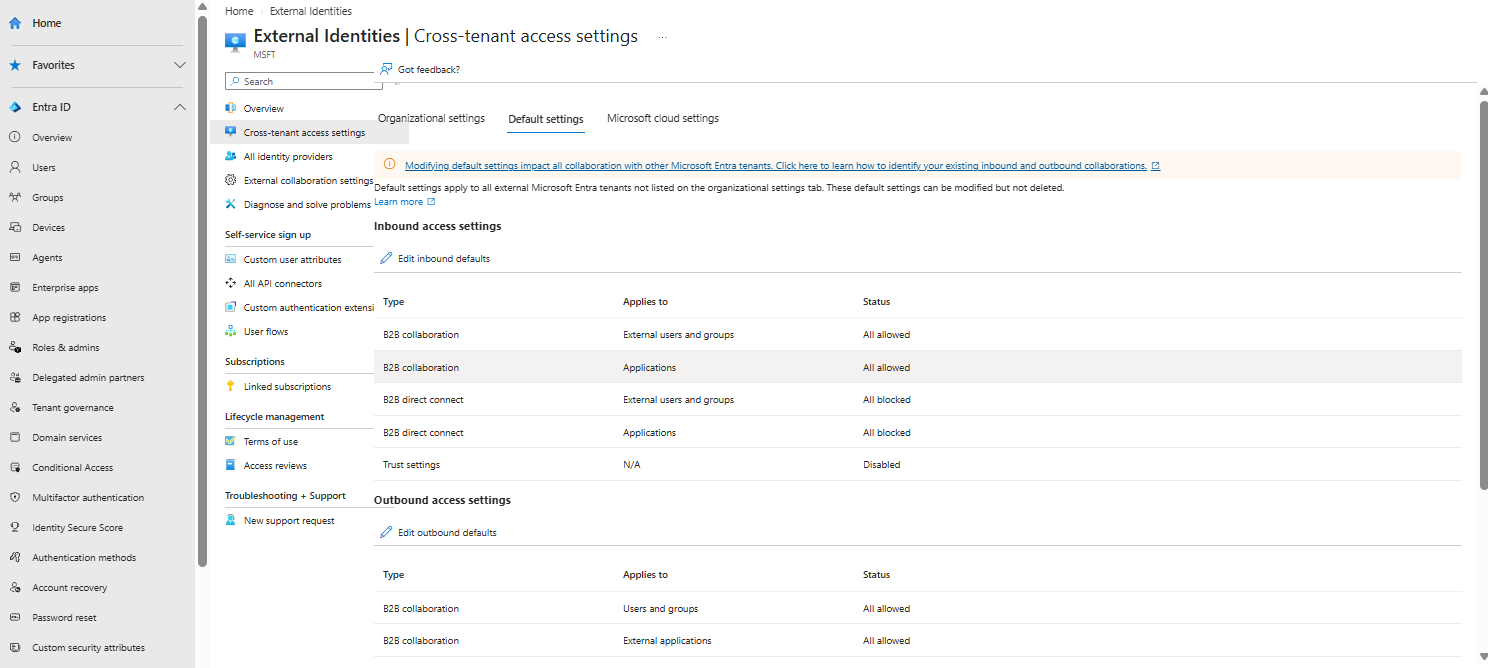
If your firm has restricted outbound access, add DamageDocket's directory as an exception under Organizational settings using the tenant ID we provided, and allow outbound B2B collaboration for it.
Why this matters. Your users authenticate against your tenant and are then accepted as guests in ours. If outbound access is blocked, account setup still appears to succeed and the user simply cannot sign in — so the symptom shows up on the user's screen rather than in any admin log.
1.2 Send staff the application address
DamageDocket does not send an invitation email. Microsoft's standard guest-invitation message arrives from an unfamiliar organization and is subject to your mail filtering, so we suppress it deliberately and rely on you to distribute the address.
Users simply browse to the application address and sign in with their work account. Nothing else is needed in your tenant. Each person must first have been added as staff in DamageDocket by your firm's DamageDocket administrator — that, and not any tenant setting, is what gives them access.
Part 2 — Connect mailboxes and calendars
DamageDocket integrates with Microsoft 365 mail and calendars. One consent grant, given once by a Global Administrator, covers all of it. That grant is not for sign-in — sign-in needs no consent in your tenant at all.
Choose or create the shared mailbox DamageDocket will send from. You need its address in 2b and again in 2c. Imported hearings will also appear on this mailbox's calendar.
Set up the shared mailbox and hearing calendar
- If you do not already have a suitable shared mailbox, sign in to the Microsoft 365 admin center with Exchange administrator access. Go to Teams & groups → Shared mailboxes → Add a shared mailbox, enter a recognizable name and address, then save it. Allow a few minutes for the mailbox to be created. If your Microsoft 365 provider manages admin access, use its shared-mailbox setup instead or ask the provider to create the mailbox.
- Open the mailbox and add staff who need access to both its mail and hearing calendaras members. Membership gives them access to both, so limit it to the people who need both. For staff who only need to see hearings, grant Reviewer permission on the mailbox's Calendar folder instead of making them mailbox members. Add future staff as needed.
- Ask one member to open the shared mailbox's calendar in Outlook and confirm it is visible. In new Outlook, they can add the mailbox under Shared with me if it does not appear automatically. This calendar is where DamageDocket places imported hearings and court events.
See Microsoft's shared mailbox setup instructions for mailbox creation and membership, and its calendar-folder permission reference for calendar-only access. Staff access is separate from the DamageDocket consent and mailbox restriction in 2a–2b.
2a — Grant DamageDocket access to Microsoft 365
Open the DamageDocket administrator consent page below. It explains the grant and the safety checks to make before its button takes you to Microsoft's consent screen.
Production administrator consent: https://app.damagedocket.com/admin-consent. Sign in as a Global Administrator for the organization you are configuring, then review and accept Microsoft's permission request.
The address does not name your tenant: signing in is what tells Microsoft which directory the grant applies to, which is why the same page works for every firm.
Permissions requested: Mail.ReadWrite, Mail.Send, Calendars.ReadWrite, and offline_access so the connection stays live. Each of the first three appears twice on the consent screen — once for access on behalf of a signed-in user, which covers individual staff mailboxes, and once for access with no signed-in user, which is the only way a shared mailbox can be reached. That is one grant, not two.
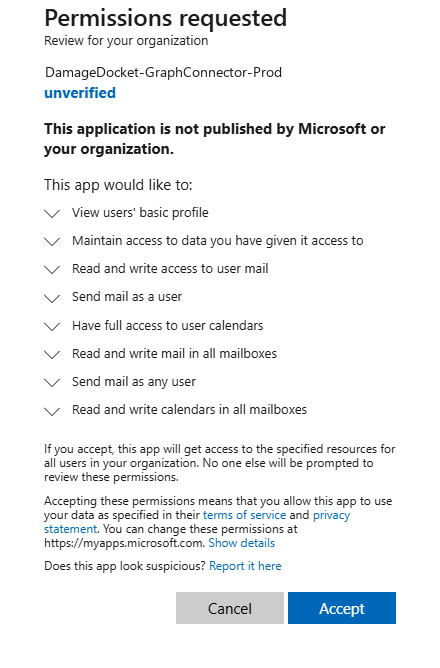
The screen will say the application is unverified. DamageDocket is not a Microsoft-verified publisher, so Microsoft shows "This application is not published by Microsoft or your organization." This is expected on this link. Before accepting, confirm the screen names the application DamageDocket-GraphConnector-Prod — that, rather than the publisher notice, is what tells you the link took you to the right place.
When you accept, Microsoft records the grant and returns you to a DamageDocket confirmation page showing your directory (tenant) ID. Note that ID down — you hand it back in 2c. Reading that page needs no DamageDocket account.
What this enables for each member of staff:
- Emails are linked to cases automatically, and appear in the case file for the whole team.
- The Outlook add-in can link and attach from the message a user is reading or composing.
- DamageDocket appointments sync to each user's own Outlook calendar.
- The connection stays live without repeatedly asking the user to sign in again.
Granting it here matters most where your tenant restricts user consent for mailbox permissions. Where it does, and this grant has not been given, each staff member is instead blocked individually with "Need admin approval" the first time they try to connect their mailbox.
What this enables for the firm's shared mailbox. The same grant is what lets DamageDocket use the shared mailbox you chose. This is not optional convenience — four capabilities depend on it entirely:
| Capability | What it means day to day |
|---|---|
| All outgoing mail from DamageDocket | Document deliveries — demand packages, records requests, correspondence assembled in DamageDocket — are sent from this mailbox. Without it, sending fails with a message saying the firm's centralized email account is not connected. This is the only way the product sends mail. |
| Faxing | Faxes are sent as email to your fax provider's address, through this same mailbox. |
| Automatic hearing calendar entries | Imported hearings have no individual organizer, so they are written to this mailbox's calendar. There is nowhere else for them to go. |
| Replies on linked email threads | Once a conversation is linked to a case, further messages in that thread are captured no matter which mailbox receives them — so a shared intake address keeps contributing to the case file. |
2b — Restrict access to just that mailbox
Do this immediately after 2a, before you move on. The permissions granted in 2a are live the moment they are accepted and are, by Microsoft's design, organization-wide — they allow access to every mailbox in your tenant. Nothing later in this guide narrows them. DamageDocket uses only the mailbox you configured, but the grant itself is broad, and restricting it is the standard Microsoft control.
In Exchange Online PowerShell:
Connect-ExchangeOnline

New-DistributionGroup -Name "DamageDocket Mailboxes" -Alias dd-mailboxes `
  -Type Security -Members cases@yourfirm.com

New-ApplicationAccessPolicy -AppId 55f91a86-a916-4498-acf5-da3203ced9ee `
  -PolicyScopeGroupId dd-mailboxes@yourfirm.com `
  -AccessRight RestrictAccess -Description "Limit DamageDocket to the case mailbox"

# Confirm the restriction works — this should report Denied
Test-ApplicationAccessPolicy -Identity partner@yourfirm.com -AppId 55f91a86-a916-4498-acf5-da3203ced9ee
55f91a86-a916-4498-acf5-da3203ced9ee is the production DamageDocket integration you just granted. The policy must name that same application in order to restrict it.
The restriction is not instant. Microsoft states an application access policy can take up to about 30 minutes to take effect, and Test-ApplicationAccessPolicy may report the old answer until it has. If the test above returns Granted immediately after you create the policy, wait and run it again before assuming anything is wrong.
If your firm already uses Microsoft's newer RBAC for Applications, that achieves the same result and can be used instead. It is configured the same way, in Exchange Online PowerShell — there is no screen for it, or for the policy above, anywhere in the Exchange admin center. This step has no portal equivalent.
2c — Send the details to your DamageDocket administrator
Send these two values to the person at your firm who administers DamageDocket:
| Value | Where to get it |
|---|---|
| Your directory (tenant) ID | The confirmation page from 2a, or Entra admin center → Overview |
| The shared mailbox address you chose | Your own decision, made before Part 2 |
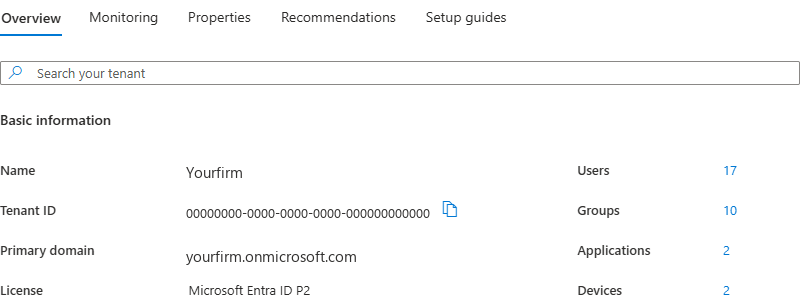
They enter both under Firm Settings in DamageDocket, which completes the connection. DamageDocket verifies access to that specific mailbox before saving, so an incorrect address fails immediately with a clear reason rather than causing problems later.
This is the only step in this guide that needs someone with a DamageDocket account. Everything before it is yours alone.
A note on inbound traffic
Nothing in Part 2 requires opening your firewall or publishing an endpoint. Microsoft delivers mail notifications to DamageDocket's service directly; no traffic is initiated toward your network.
Part 3 — Deploy the two Office add-ins
Find both DamageDocket add-ins in the Microsoft Marketplace through the Microsoft 365 admin center. Search for the names below and confirm the publisher is DamageDocket.
| Add-in | Marketplace search name | Purpose | Permission requested |
|---|---|---|---|
| Word | DamageDocket Templates | Create and edit document templates | Read/write the open document |
| Outlook | DamageDocket Mail Sync | Link emails to cases, attach case files while composing | Read/write the open message |
Deployment steps — repeat for each add-in
- Sign in to admin.microsoft.com as a Global Administrator.
- Go to Settings → Integrated apps, then select Get apps to open the marketplace.
- Search for DamageDocket Templates. Select the Word add-in published by DamageDocket, then select Get it now.
- Follow the deployment wizard and choose who gets it. Select Specific users or groupsand target your DamageDocket user group to keep add-in visibility aligned with who is licensed.
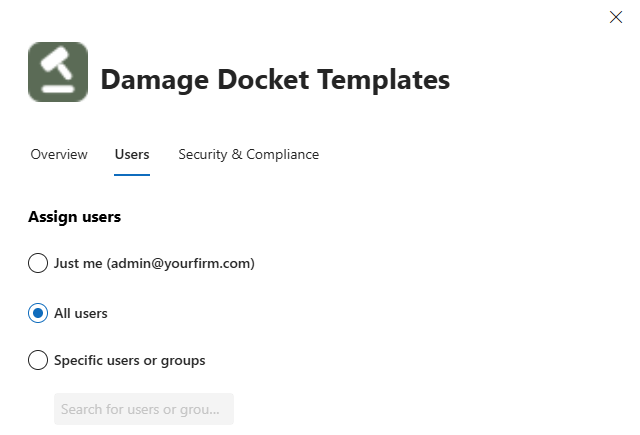
You can change this later from the same page: select the deployed add-in, then the Users tab. - Review and accept the requested permissions, then select Finish deployment. Select Done when deployment completes.
- Repeat steps 2–5, this time searching for DamageDocket Mail Sync and selecting the Outlook add-in published by DamageDocket.
Cannot use admin.microsoft.com or Integrated apps? Some provider-managed Microsoft 365 plans, including some GoDaddy-managed tenants, do not offer this centralized deployment path. In that case, each person who needs an add-in should sign in with their work account at marketplace.microsoft.com, search for DamageDocket Templates and DamageDocket Mail Sync, confirm the publisher is DamageDocket, and select Get it now for each. Follow the prompts to install them in Word and new Outlook. This installs the add-ins for that person; repeat for every intended user. Your organization's policy must allow users to acquire Office add-ins from Microsoft Marketplace.
With centralized deployment, confirm DamageDocket Templates and DamageDocket Mail Sync appear in the Deployed apps list and are assigned to the intended users or groups. With individual installation, have each user confirm both add-ins appear in Word and new Outlook.
A newly deployed add-in is not available immediately — Microsoft advises allowing up to 72 hours for it to appear on the ribbon. Users should fully close and reopen Office to pick it up. The Word add-in appears on the Home ribbon; the Outlook add-in appears on both the reading and composing ribbons.
See Microsoft's Office add-in deployment guidance for rollout and availability details.
Client requirements
| Requirement | Why it matters |
|---|---|
| New Outlook for Windows or Outlook on the web for the Outlook add-in | DamageDocket Mail Sync requires the modern Outlook experience. It does not work correctly in classic Outlook for Windows, even on a current Microsoft 365 build. Use new Outlook or Outlook on the web to link messages and attach case files. |
Allow pop-ups for outlook.office.com and outlook.cloud.microsoft in browser policy | The add-in sign-in opens a genuine pop-up window. Desktop Outlook is unaffected, so without this you see sign-in failing only for people using Outlook in a browser. Microsoft is moving Outlook on the web to outlook.cloud.microsoft; allow both, since which one a user lands on is not yours to control. |
Allow the add-in addresses, login.microsoftonline.com, and the DamageDocket service address through web filtering | Sign-in redirects across all three. If any is blocked, the sign-in window opens and then goes blank. |
| Outlook on desktop or web | The add-ins do not support Outlook on mobile devices. |
Piloting first
Pilot with a small group. For centralized deployment, follow the steps above and at step 4 select Specific users or groups. Widen access afterwards by changing each add-in's assignment. If centralized deployment is unavailable, ask just the pilot users to install both add-ins from Microsoft Marketplace first.
Installing an add-in is not the same as being able to use it. Sign-in needs nothing from your tenant, but connecting a mailbox does: if your tenant restricts user consent for mailbox permissions and the 2a grant has not been given, a pilot user installs the add-in successfully and is then stopped with "Need admin approval" the first time they try to connect. Grant 2a before the pilot, not after it.
If you plan to run a pilot or test environment alongside production, tell DamageDocket first — the two sets of add-ins need to be issued so that they can coexist in one tenant.
Part 4 — Network and web filtering
Allow outbound HTTPS to:
| Address | Purpose |
|---|---|
| The main DamageDocket application address | The web application |
| The DamageDocket service address — including WebSocket connections | Data, and live on-screen updates |
| The Word and Outlook add-in addresses | The Office add-ins |
login.microsoftonline.com | Microsoft sign-in |
maps.googleapis.com | Address auto-complete when typing addresses (cosmetic only) |
fonts.googleapis.com, fonts.gstatic.com, cdnjs.cloudflare.com | Fonts and icons for the web application. Blocked, every page still works, but text falls back to a system font and icons are missing — including the confirmation page at the end of 2a, which is often the first DamageDocket page anyone at your firm sees |
Good to know
- No SPF, DKIM, or DMARC changes are needed. DamageDocket sends through your own Microsoft 365 mailbox, so mail leaves as your firm and is already aligned with your existing records.
- DamageDocket does not send system email. There are no invitation emails, no expiry or billing notices, and no password emails — there are no passwords. Notifications appear inside the application. Plan any account or billing communication through your normal channels.
- Connecting a mailbox does not import past email. Linking begins from the moment a mailbox is connected; historical messages are not backfilled.
- Calendar entries created by DamageDocket carry a "DamageDocket" category and deliberately have no attendees, so Outlook never sends your staff meeting invitations they have to accept. Mention this to users before they notice entries appearing.
If something does not work
| Symptom | Cause |
|---|---|
| User signs in successfully but the application is empty | They have not been added as staff in DamageDocket. Your firm's own DamageDocket administrator adds them there, which is what creates their access. This is not a tenant setting and not a support matter. |
| "Need admin approval" when connecting a mailbox | The Part 2a consent has not been granted. |
| Sending a document fails, saying the firm's email account is not connected | Part 2a or Part 2c is incomplete, or the shared mailbox connection needs re-authorizing. |
| Sign-in returns to the sign-in page repeatedly | SSL inspection or a proxy is interfering with the session — see Part 4. |
| Sign-in window opens blank, only in Outlook on the web | Pop-ups are blocked, or one of the addresses in Part 3 is filtered. |
| Outlook add-in appears but linking or attachments do not work correctly | Confirm the user is in new Outlook for Windows or Outlook on the web, not classic Outlook. |
| Add-in does not appear after deployment | Propagation is not complete, or Office has not been restarted since deployment. |
Setup checklist
- Confirmed outbound guest access is permitted (1.1)
- Application address distributed to staff (1.2)
- Shared mailbox created or chosen, and hearing-calendar members added (2)
- Admin consent granted for mail and calendars (2a)
- Mailbox access restricted to that mailbox only (2b)
- Directory ID and shared mailbox address sent to your DamageDocket administrator (2c)
- Word add-in deployed or installed for each user (3)
- Outlook add-in deployed or installed for each user (3)
- Outlook add-in users use new Outlook or Outlook on the web (3)
- Outbound addresses and WebSocket traffic permitted (4)
- Pop-ups allowed for Outlook on the web, if used (3)
Stuck on any step, or unsure which values apply to your firm? Email support@damagedocket.com and we will work through it with you.